Jira and GitLab
Jira and GitLab in your personal task list
The issues and merge requests assigned to you sit in Today and Upcoming next to your own tasks. tsk on your laptop reads Jira and GitLab with the login you already have there and pushes them to tasks. No tracker token ever reaches our server.
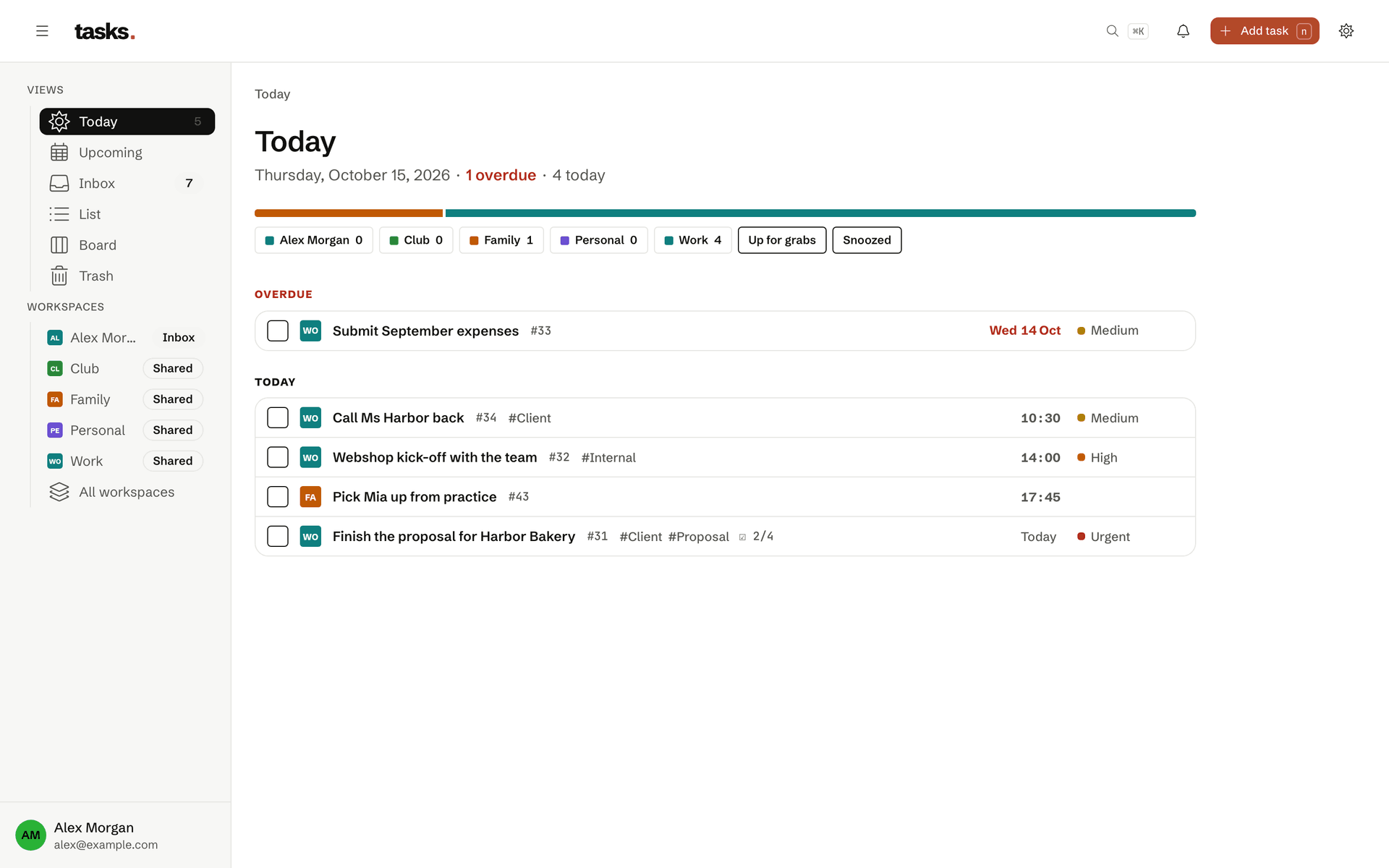
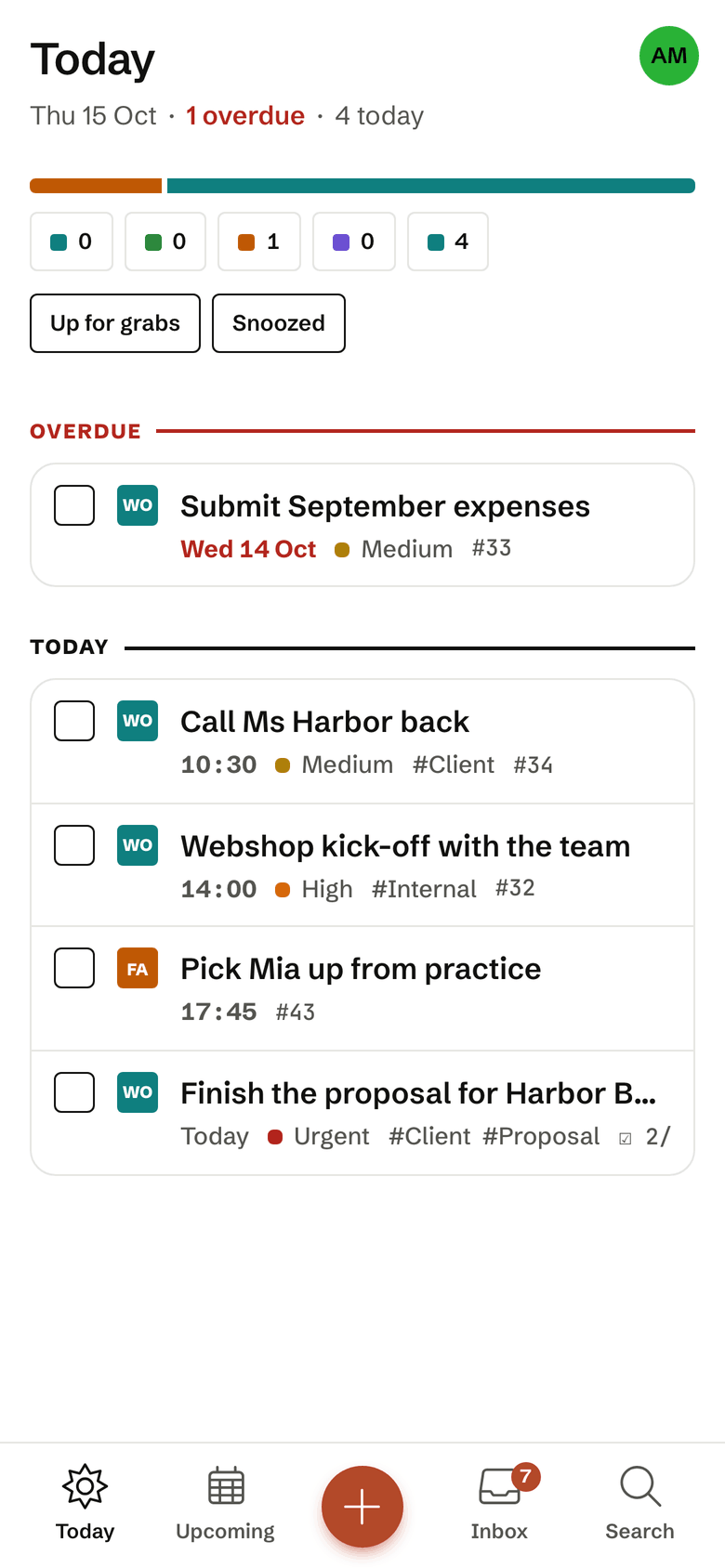
- GitLab issues, merge requests and review requests
- Jira issues assigned to you
- Pushed from your laptop with tsk sync
- No Jira or GitLab token on our server
- Your own priority and tags on every issue
GitLab
GitLab through your own glab, behind the VPN too
tsk sync gitlab asks the glab you are already logged in with for the issues and merge requests assigned to you and the merge requests waiting for your review, and sends them to tasks. tasks stores no GitLab token and never calls GitLab, so a company instance behind a VPN works too, without an admin approving a third-party app.
- Merge requests that wait for your review carry a Review marker
- Title, due date and status come from GitLab and stay read-only
- Priority, tags, category, start date and a note are set in tasks
- Recently closed items show as done or cancelled, then move to the archive
- You close the issue in GitLab; tasks links there
tsk sync gitlab
Jira
Jira from your laptop, no corporate token on the server
tsk sync jira reads the Jira issues assigned to you over the Jira API, with the login jira-cli already keeps on your laptop, and sends them to tasks. Our server stores no Jira credentials and never calls Jira. Access to your company’s Jira stays where your company allows it.
Each tsk sync is a single run. Keep it going with --watch 10m, or put it on a cron, launchd or systemd timer with a token from tsk login --scope sync that can do nothing but sync.
- Descriptions, comments and attachments are never transferred
- If you like, tasks shows only the key, such as ABC-123; the title never leaves your laptop
- Issues no longer assigned to you are archived
- In Today, Upcoming, search, the calendar feed and MCP like your own tasks
tsk sync jira
Do corporate credentials sit on the server?tsk in the terminalBlog: Work tasks in a personal to-do app?
Setup
Choose which projects land in which workspace
tsk sync gitlab setup lists the GitLab projects you are a member of, tsk sync jira setup the Jira projects. Tick the projects that belong together, pick a workspace for them, and repeat for the next group. tsk saves the mapping on your laptop and uses it on every sync. For scripts, --map sets the same mapping without the menu.
Projects without a mapping are not sent. tsk names them after each sync and points you to setup, and --verbose shows which rule sent each issue where.
- Projects you already mapped come pre-selected; untick one to remove it
- Filter the list as you type, even with hundreds of projects
- The mapping stays in ~/.config/tsk/config.toml and never goes to our server
- `--verbose` writes to stderr, so scripts reading `--json` keep working
                    $ tsk sync gitlab setup
$ tsk sync jira setup --map 'ABC=work'
$ tsk sync gitlab --verbose --dry-run
Frequently asked questions
How do Jira and GitLab issues show up in tasks?
Issues assigned to you appear next to your own tasks, with their key, their source and a link to the original. tsk sync gitlab and tsk sync jira read them on your laptop, GitLab through your logged-in glab, Jira with jira-cli’s stored login, and send them to tasks. From GitLab you also get the merge requests waiting for your review. They are as fresh as your last sync: run once, with --watch 10m or on a timer.
Which project lands in which workspace you set once with tsk sync gitlab setup or tsk sync jira setup. Projects without a mapping are not sent, and tsk names them after each sync.
Title, due date and status stay read-only and follow the original. Priority, tags, category, start date and a note are yours to set in tasks; they survive every sync. Recently closed issues show as done or cancelled and then move to the archive.
Are corporate credentials stored on the server?
No, neither for Jira nor for GitLab. tsk sync jira and tsk sync gitlab fetch issues on your own computer, with jira-cli’s stored login and your logged-in glab, and send only the list of issues to tasks. The corporate token goes only to your company’s Jira or GitLab server, never to ours, and our server never calls Jira or GitLab. So no admin has to approve a third-party app, and it works behind a VPN too.
For a timer, tsk login --scope sync creates a separate token that can do nothing but sync. tsk never sends descriptions, comments or attachments of external issues. If needed, a workspace shows only the issue keys instead of the titles; the titles then never leave your laptop.
How does `tsk` work in the terminal?
tsk is a single program for Linux, macOS and Windows, with no dependencies. Download it, check the checksum and sign in with tsk login and an access token. After that, tsk add 'Send quote $client-a tomorrow !p1' adds a task in one line.
ls, show, edit, mv, done, reopen, rm and restore list, edit, move and complete tasks. tsk add -p '#34' --item 'A' --item 'B' adds several subtasks under #34, tsk mv re-parents them. Every command gives machine-readable output with --json for scripts.
Issues and your own tasks on one page
The account is free. Then tsk on your laptop brings in Jira and GitLab.