iPhone shortcut
Add a task with an iPhone shortcut
“Hey Siri, new task”, the Action Button or the share sheet: the “New task” shortcut sends your text to tasks and tells you the number of the new task.
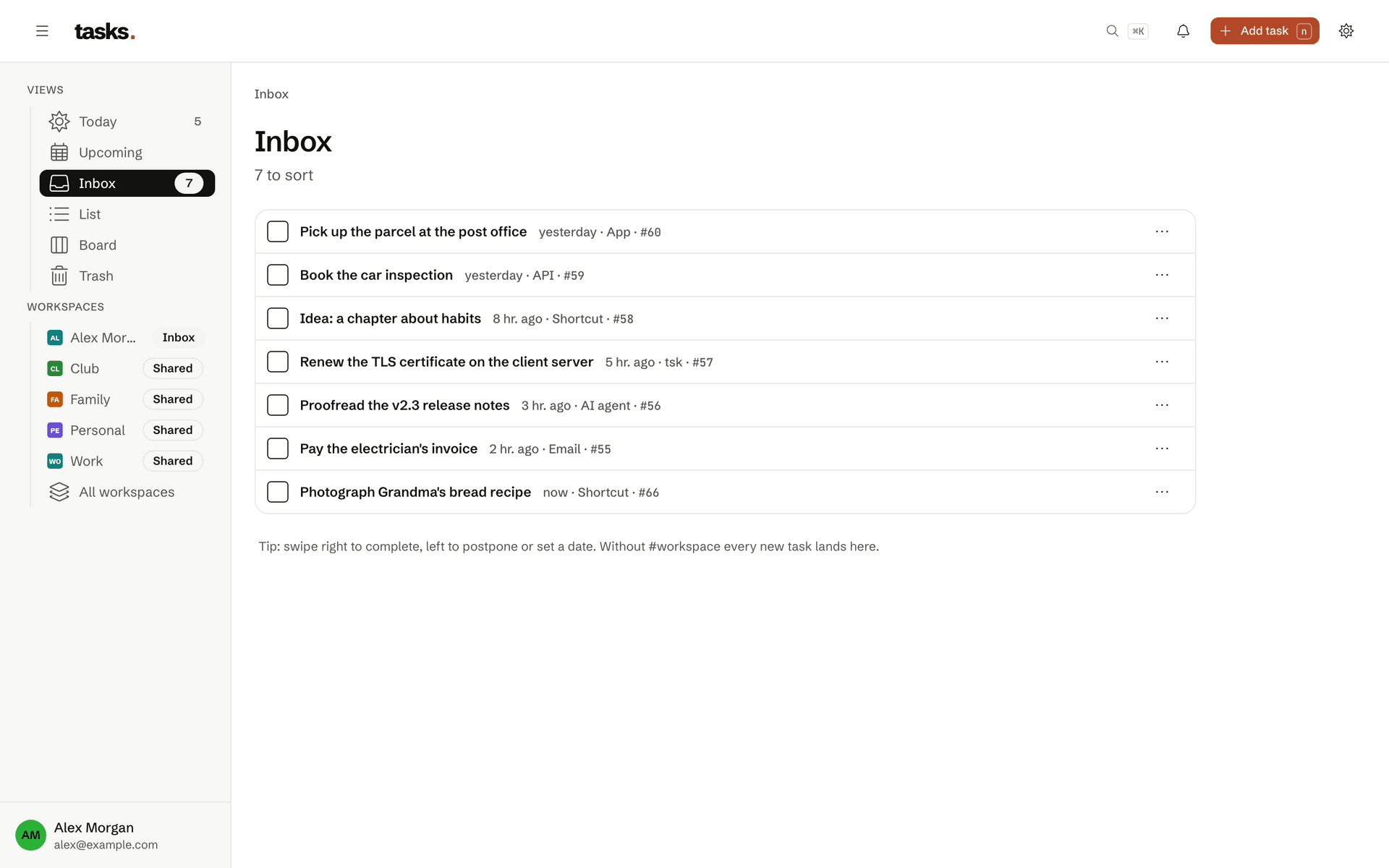
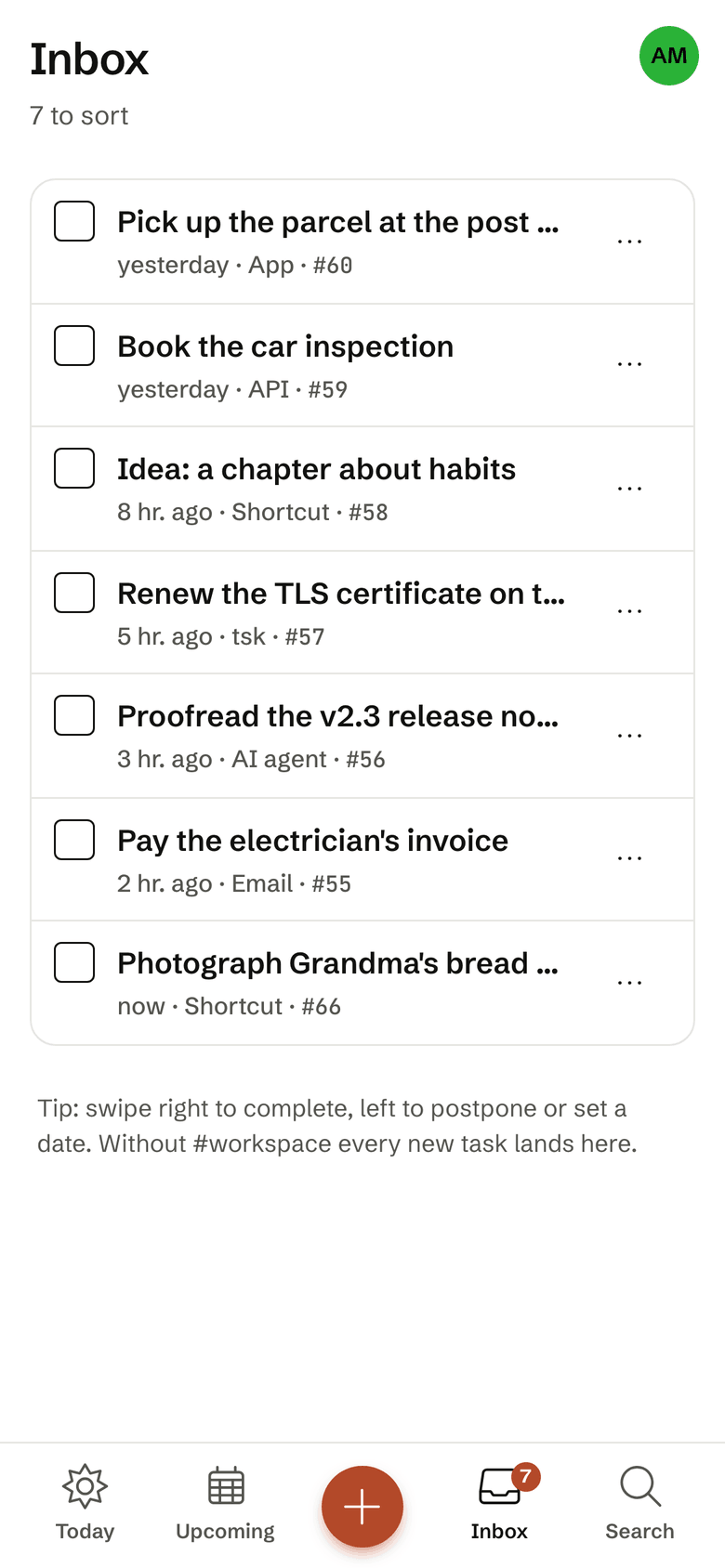
- Siri, Action Button and share sheet
- On iPhone, iPad and Mac
- Replies with the task number
- A token that can only add tasks
On the go
Dictate, share, done
Say “Call the dentist $family tomorrow 9:30” and the task lands in the Family workspace, due tomorrow at 9:30. Without a workspace it lands in your Inbox. From Safari, Mail or Notes you share selected text through the share sheet.
- The same quick-add line as the web app and the terminal
- One press away on the Action Button
- The shortcut's token can only add tasks
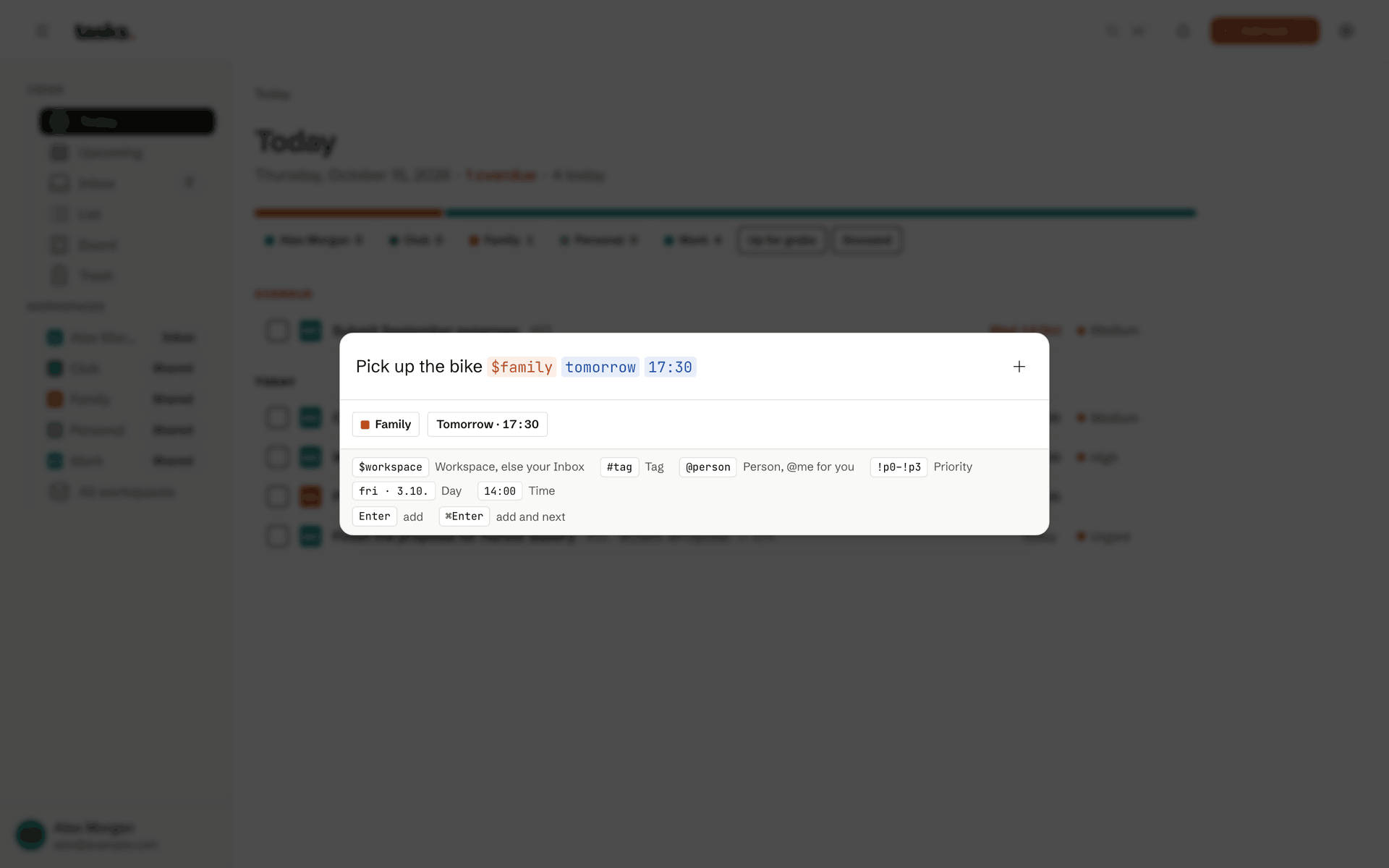
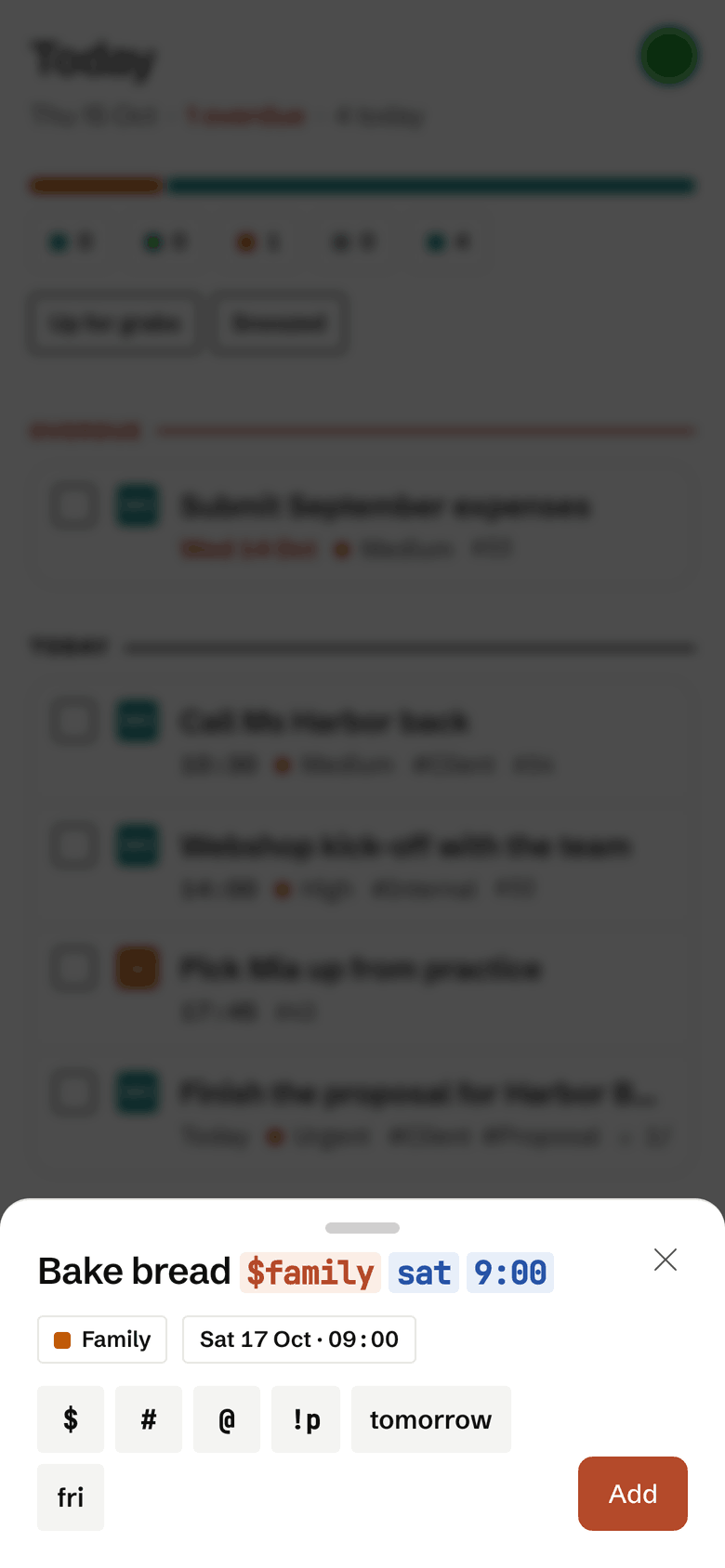
Get the shortcut
Open the link on your iPhone, iPad or Mac and Shortcuts asks for your API token. You create the token under API tokens in the settings.
Set up in three steps
Create your account
Sign up for free and create a token with write access under API tokens.
Get the shortcut
Add “New task” and paste the token when Shortcuts asks for it.
Siri or Action Button
Say “New task” or put the shortcut on the Action Button.
Frequently asked questions
How do I add tasks on my iPhone?
With the “New task” shortcut. Dictate the task with Siri, start the shortcut with the Action Button or take text from the share sheet. The shortcut sends the text through quick add and answers with the number of the new task, for example #128. It needs an access token that may only create tasks.
The web app also runs on the iPhone and can be added to your Home Screen.
Does tasks work offline and on my phone?
tasks is a web app for computer and phone that you install like an app on your Home Screen, on the iPhone through “Add to Home Screen”. You do not need an app from the App Store.
Without a connection the installed app still opens, and views you have already loaded stay readable. Changes you make offline are kept and sent as soon as you are back online. If that causes a conflict, the app shows it to you to decide.
How am I reminded of due tasks?
If a task has a time, you get a push notification at that time. When a task is assigned to you, you get a push as well. On top of that comes the daily digest: once a day, at 07:30 by default, with what is overdue, due today, due in the next days and up for grabs. It arrives by email, by push or both, and not at all on days with nothing due.
On the iPhone, push needs the installed app on your Home Screen. You can remove each device again in the settings.
Just dictate your next task
The account is free. Setting up the shortcut takes a few minutes.